Appearance
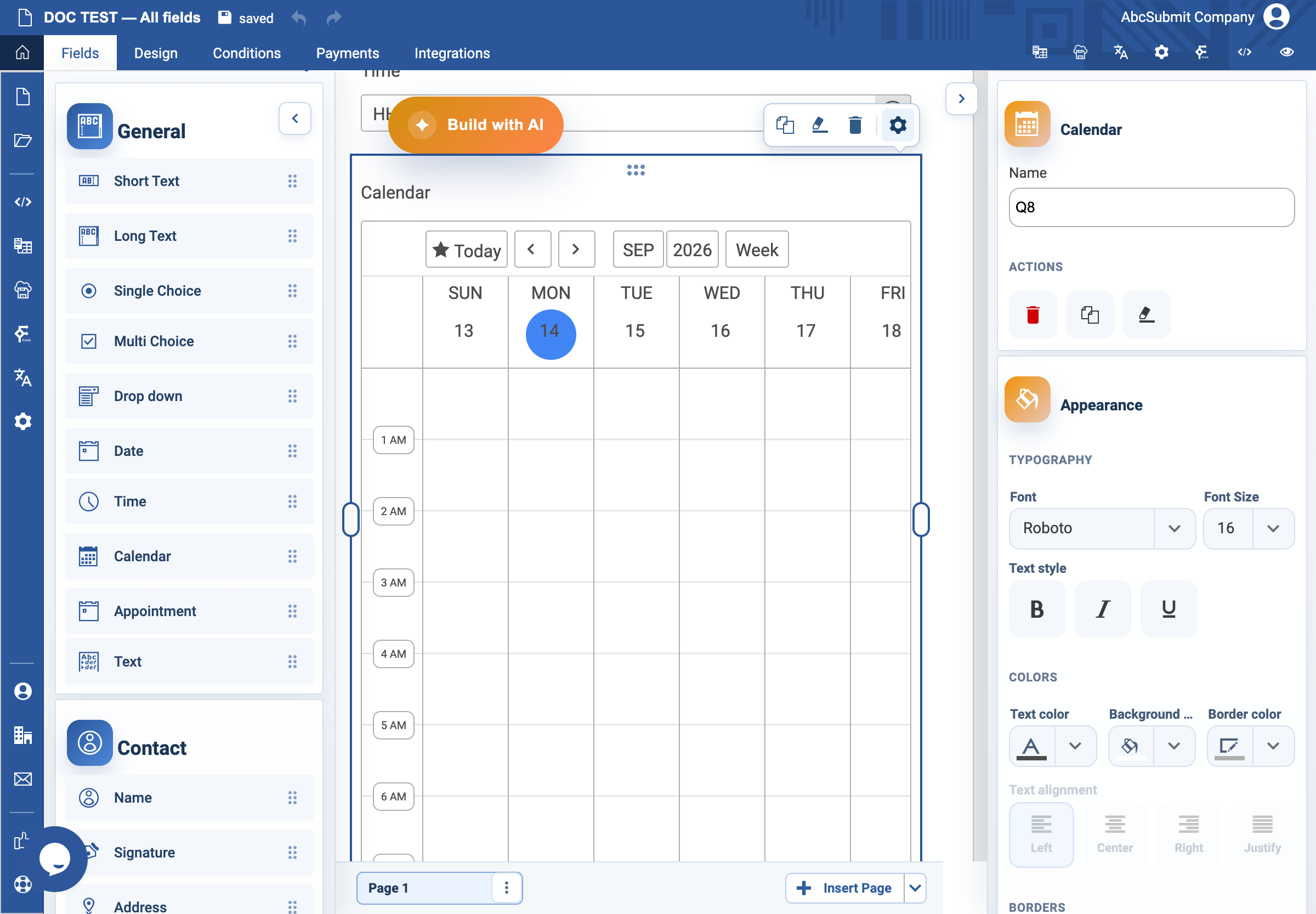
Calendar field
Use Calendar to display or collect events from configured calendars. Use Appointment instead when respondents should choose available booking slots.
Example: read-only events calendar
- Open Fields > General and select Calendar.
- Select the field and open Edit.
- Set the label to
Upcoming sessionsand Name toupcoming_sessions. - In the Calendar settings, select Select calendars.
- Check the calendar or calendars that should appear, then select Apply.
- Set Default view to Day, Week, or Month.
- Turn on Read only when respondents should only view events.
- Choose whether to show the view selector.
- Preview and confirm that only the intended events are visible.
Payment settings
Enable Publish in cart only when selected calendar events should become payable cart items. Then set Price / hour and a customer-facing Cart title. Test duration, currency, cart total, payment, and cancellation behavior end to end before publishing.
Create and manage calendar sources and events
The field’s Select calendars button opens Select calendar(s). It loads calendars available to the current account, lets you check one or more sources, and applies the selection. Manage calendars opens the calendar manager, where the account can Create new, edit Settings, or delete a selected calendar. A form field cannot display events from a calendar the account cannot retrieve.
Each calendar source has its own settings: name and description; timezone; whether overlapping events are allowed; fixed start/end times; fixed, minimum, and maximum event duration; whether past/future events are posted; privacy; and an optional timetable. Disabled duration/time switches leave those values unconstrained. A calendar with no timetable or events can legitimately render empty.
Use the Calendar widget’s Create New event action only when you have permission to manage the selected calendar. An event has a title, description, start, and end date/time. Editing or deleting an event changes the source calendar and therefore every form using it; test with a separate calendar before changing a shared operational calendar. Past/future visibility and timezone are source settings, so an event can be absent even when it exists in the manager.
If Read only is enabled, respondents can view events but cannot create or edit them. If it is disabled, test the account’s event-write permissions and whether the form is exposed publicly before publishing.
Expected result
The selected calendars appear in the chosen default view. Read-only calendars cannot be changed by respondents; editable calendars must be tested carefully for permissions and data exposure.